
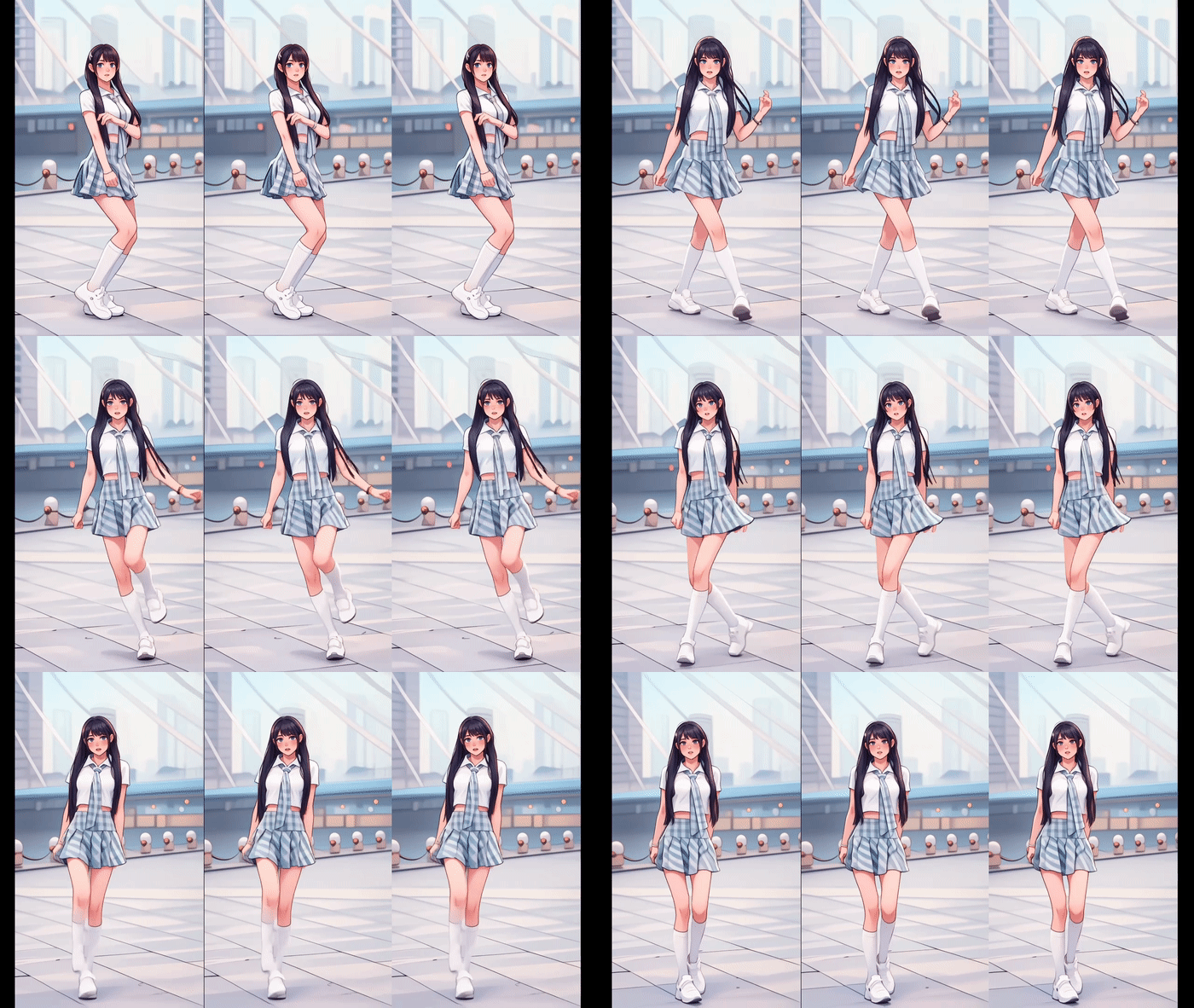
If you’ve been scrolling through social media lately, you’ve probably seen viral AI dancing videos where a character dances exactly the way the creator wants.
But here’s the exciting part — AI is not limited to dancing anymore.
You can now:
- Make your own character dance
- Make it act with expressions
- Make it speak your own dialogues
- Add eye movements, gestures, and emotions
- Do all this without heavy or complex prompts
In this blog, I’ll explain step by step how you can create such AI dancing videos easily, even if you are a beginner.
What You Will Learn in This Tutorial
✔ How to create your own AI character
✔ How to convert a real photo into a Pixar-style character
✔ How to add realistic dance motion using a reference video
✔ Important rules to get perfect results
✔ How to later make your character speak dialogues with expressions
Step 1: Create Your Own AI Character (Most Important Step)
To generate realistic dance motion, you first need a proper full-body character image.
Upload Your Photo to ChatGPT
- Upload your own photo to ChatGPT
- Make sure the photo shows your full body
- Avoid:
❌ Half body photos
❌ Cropped images
❌ Cut legs or hands
📌 Why full body matters?
Because dancing requires visible body movement from head to toe. A full-body image ensures smooth motion.
Simple Prompt to Use
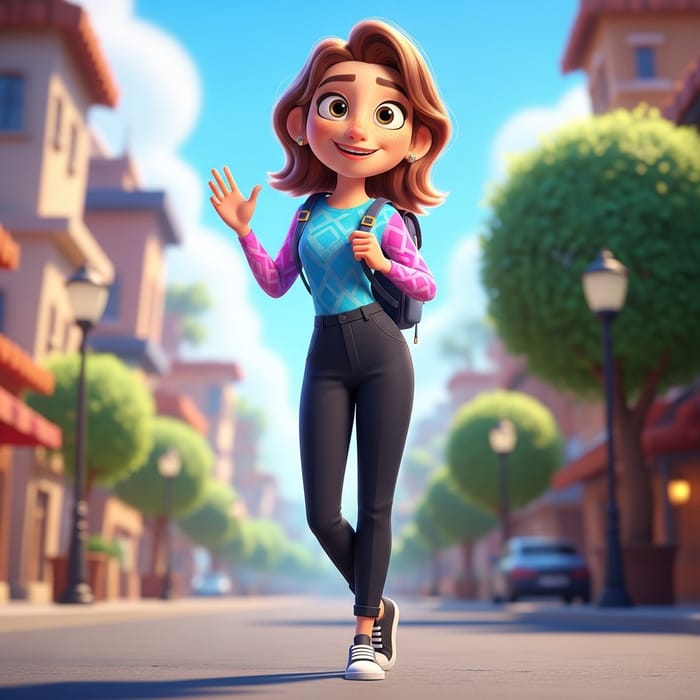
Convert this image into Pixar style
ChatGPT will generate a Pixar-style cartoon character:
- Same outfit
- Same facial features
- Same pose
- Clean animated look
Once you like the result, download and save the image.
Step 2: Add Dance Motion Using Kling AI
Now comes the fun part — making your character dance.
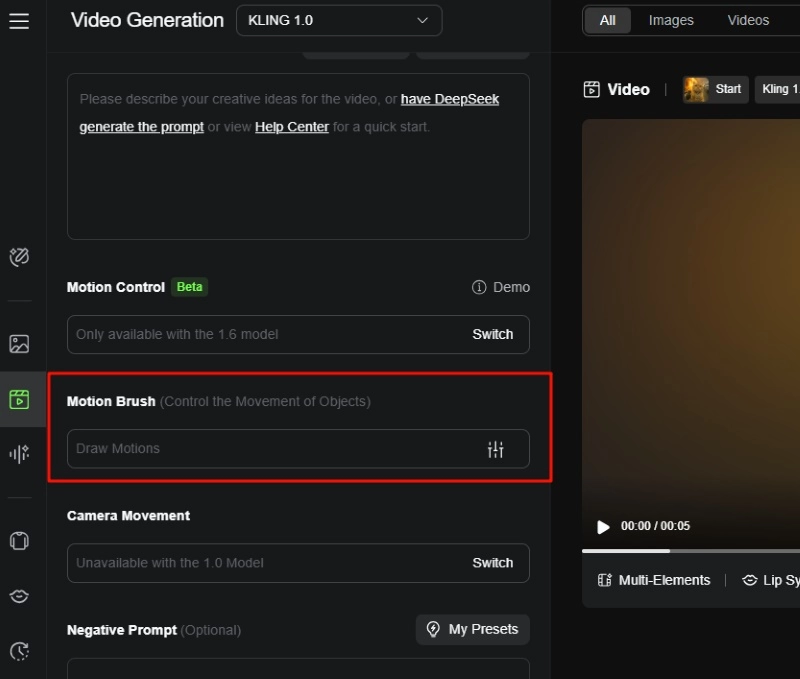
Open Kling AI
- Go to Kling AI
- Click on Video
- Select Motion Control
Upload Your Character Image
Upload the Pixar-style character image you just created.
Step 3: Upload a Dance Reference Video
This step controls how your character will dance.
Rules for Reference Video
✔ Maximum length: 30 seconds
✔ Only one person in the video
✔ Full body must be visible
✔ Clear dance movements
📌 The AI will copy:
- Dance steps
- Body movements
- Rhythm and timing
Once uploaded, Kling AI will show credit usage.
Click Generate.
Step 4: Watch Your AI Character Dance 🎉
After processing, your video will be ready.
✨ Result:
- Your character dances exactly like the reference
- Smooth motion
- Proper body alignment
- Pixar-style animation
- Viral-ready output
Now simply download the video and post it on:
- Instagram Reels
- YouTube Shorts
- Facebook Reels
Want Your Character to Speak Dialogues Too?
Dancing is just the beginning.
You can also:
- Make your character speak your own dialogues
- Add lip sync
- Add facial expressions
- Use hand gestures
- Create acting scenes, not just dance
👉 A full tutorial for dialogue + expressions is available in the video below.
🎥 Full Video Tutorial (Must Watch)
Watch the complete step-by-step explanation here:
👉 YouTube Video Link:
https://www.youtube.com/watch?v=x3GLABYSQbA
This video covers:
- Character creation
- Dance motion
- Expression control
- Dialogue animation
Why This AI Method Is So Powerful
✔ No complex prompts
✔ Beginner-friendly
✔ High viral potential
✔ Works for creators, brands & influencers
✔ Perfect for short-form content
Final Thoughts
AI has changed content creation completely.
Now anyone can create:
- Dancing characters
- Talking avatars
- Acting animations
- Expressive AI videos
All you need is:
- One good photo
- One reference video
- A little creativity
If you found this guide helpful, don’t forget to:
👍 Like the video
💬 Comment your thoughts
📌 Follow for more AI tutorials
Happy creating 🚀
