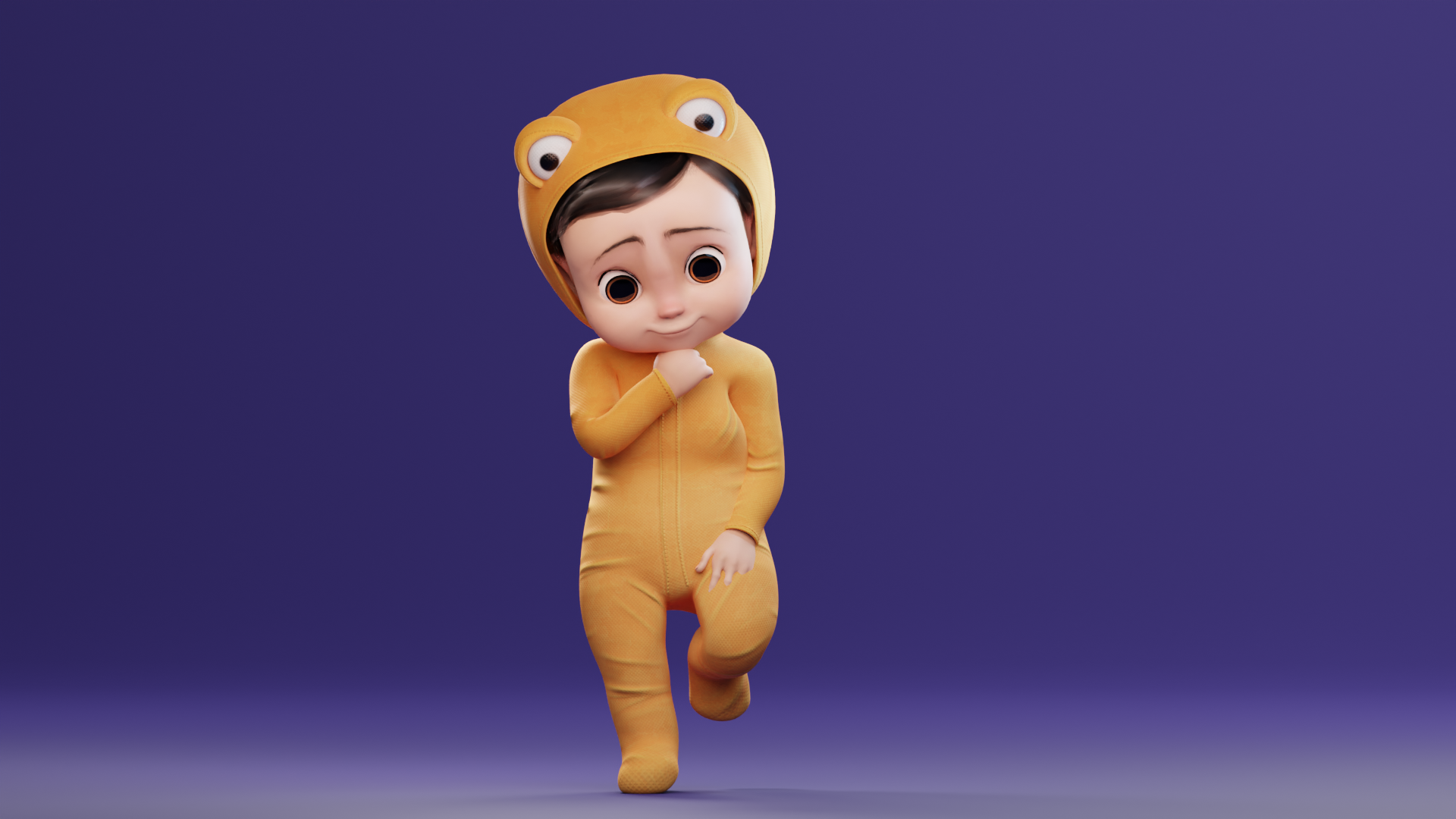
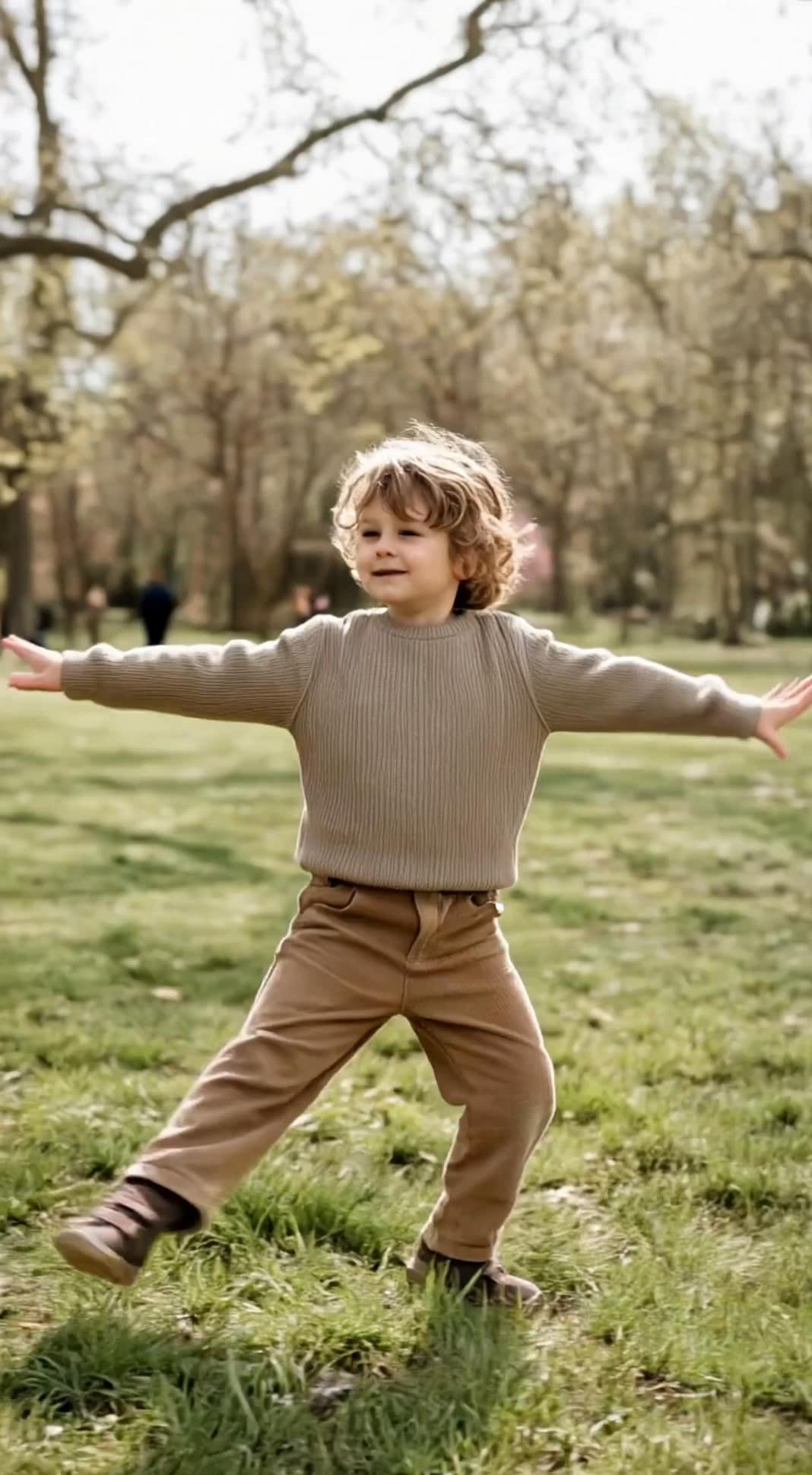
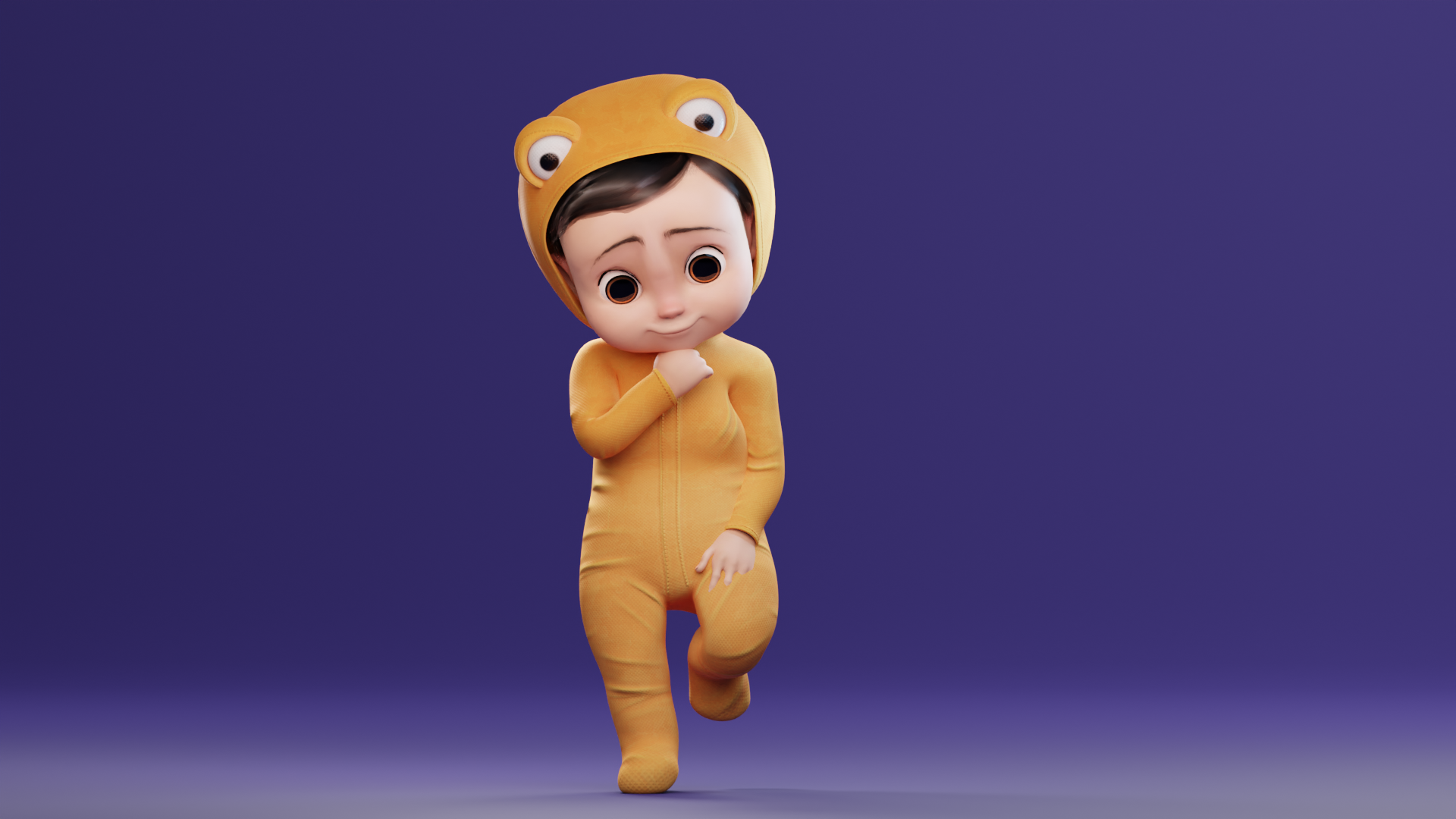
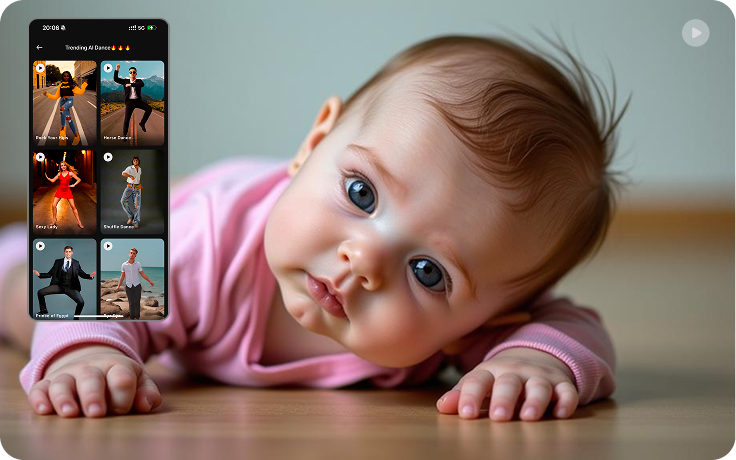
AI-generated baby dance videos are one of the most viral content formats right now. The best part? You don’t need real models, studios, or expensive shoots. With the right AI tools, you can turn a simple image into a magical dancing baby video in just a few minutes.
In this blog, I’ll explain the complete step-by-step process in simple English, based on the workflow shown in this video:
👉 https://www.youtube.com/watch?v=s7uUvRN4LN0
This method is perfect for:
- Content creators & influencers
- Fashion brands & outfit sellers
- Instagram Reels / YouTube Shorts
- AI learning & demo content
Step 1: Prepare a Clear Outfit or Character Image

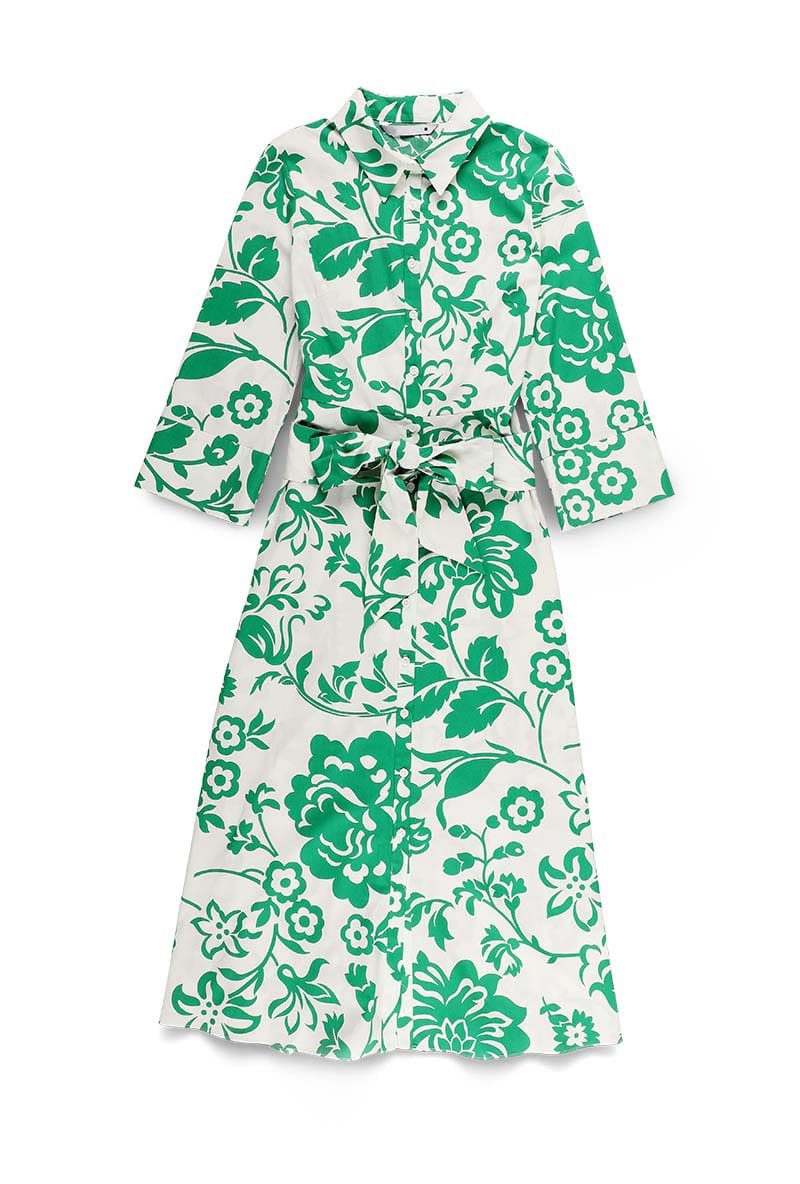

Before using AI, you need high-quality images.
Image Guidelines:
- Clear front view
- Outfit details should be visible
- Accessories (earrings, shoes, jeans, etc.) must be noticeable
- Plain or clean background is best
💡 Tip: The clearer the image, the better AI understands the outfit and structure.
Step 2: Create a 3D Baby Character Using Google Gemini

4
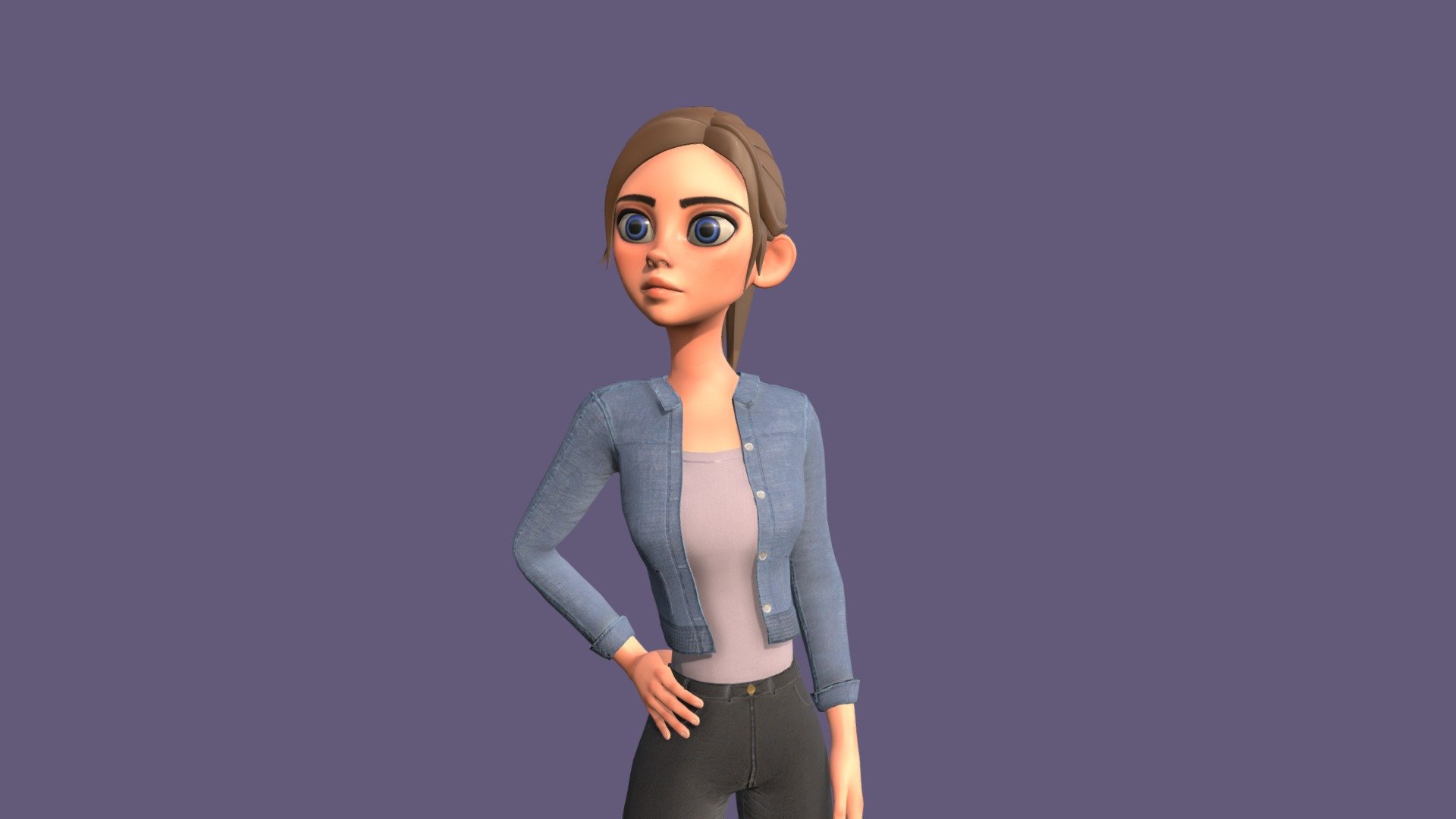
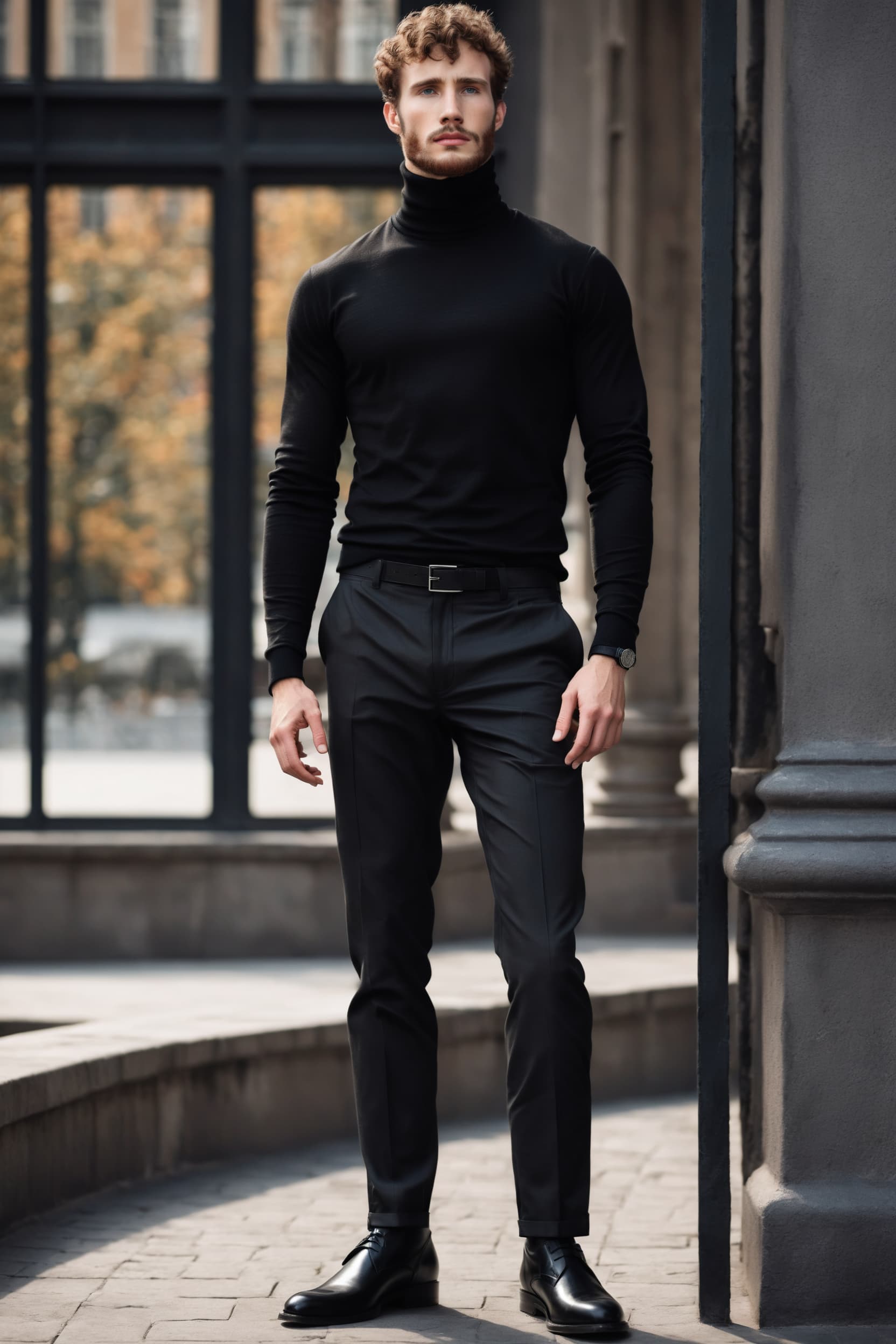
Now convert your outfit image into a 3D Pixar-style baby character.
What to do:
- Open Google Gemini
- Upload your outfit image
- Use a prompt like:
A beautiful 3D Pixar-style baby girl character with a cute, aesthetic look, wearing this exact outfit and all accessories. Analyze the outfit properly. Standing pose, soft lighting, high details, 9:16 aspect ratio.
Result:
- You’ll get a perfect AI baby model
- Outfit will look realistic
- You can tweak things like hair color, skin tone, expressions
💡 Example fix:
Change hair color to black
Step 3: Generate Multiple Baby Images (Optional but Recommended)
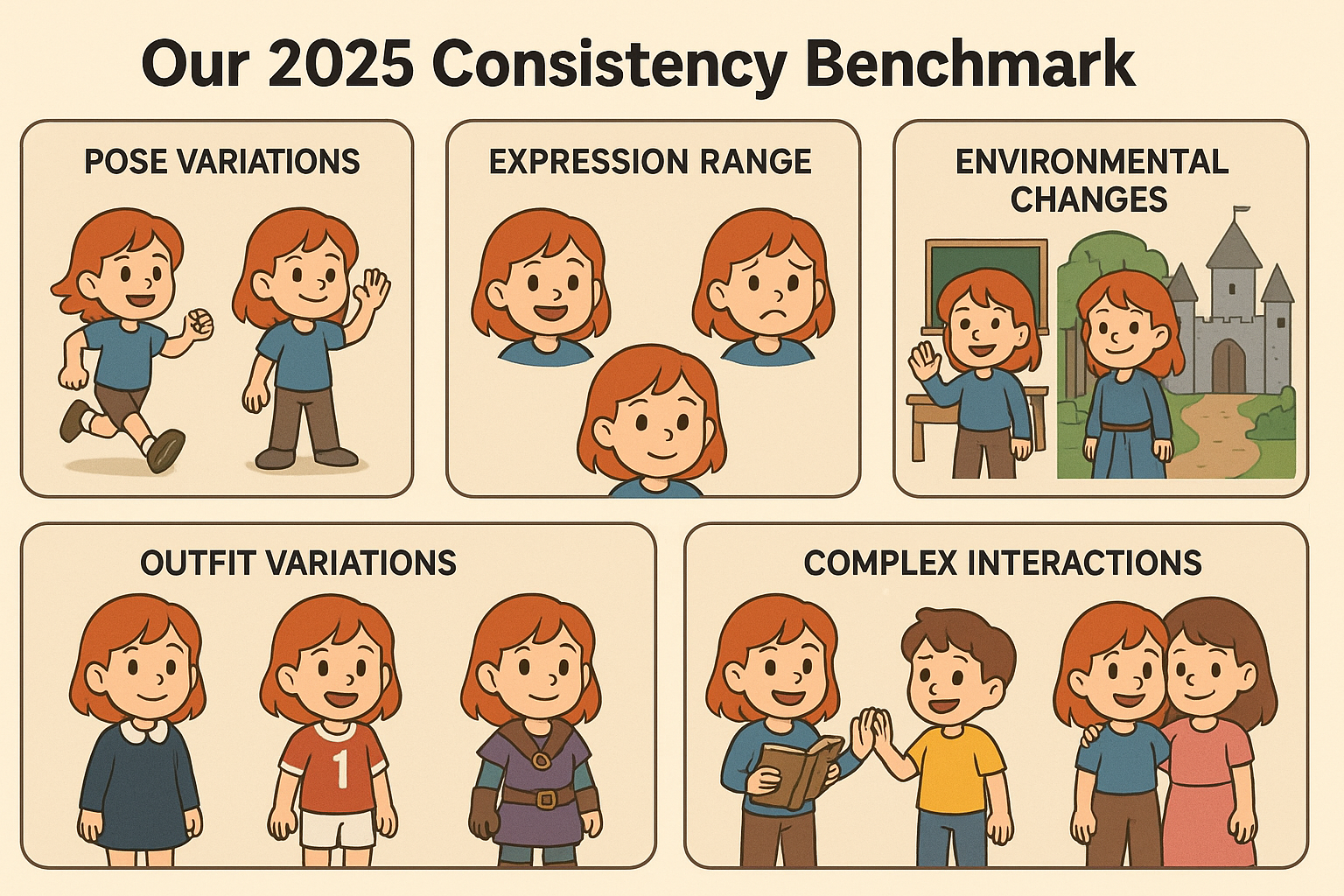

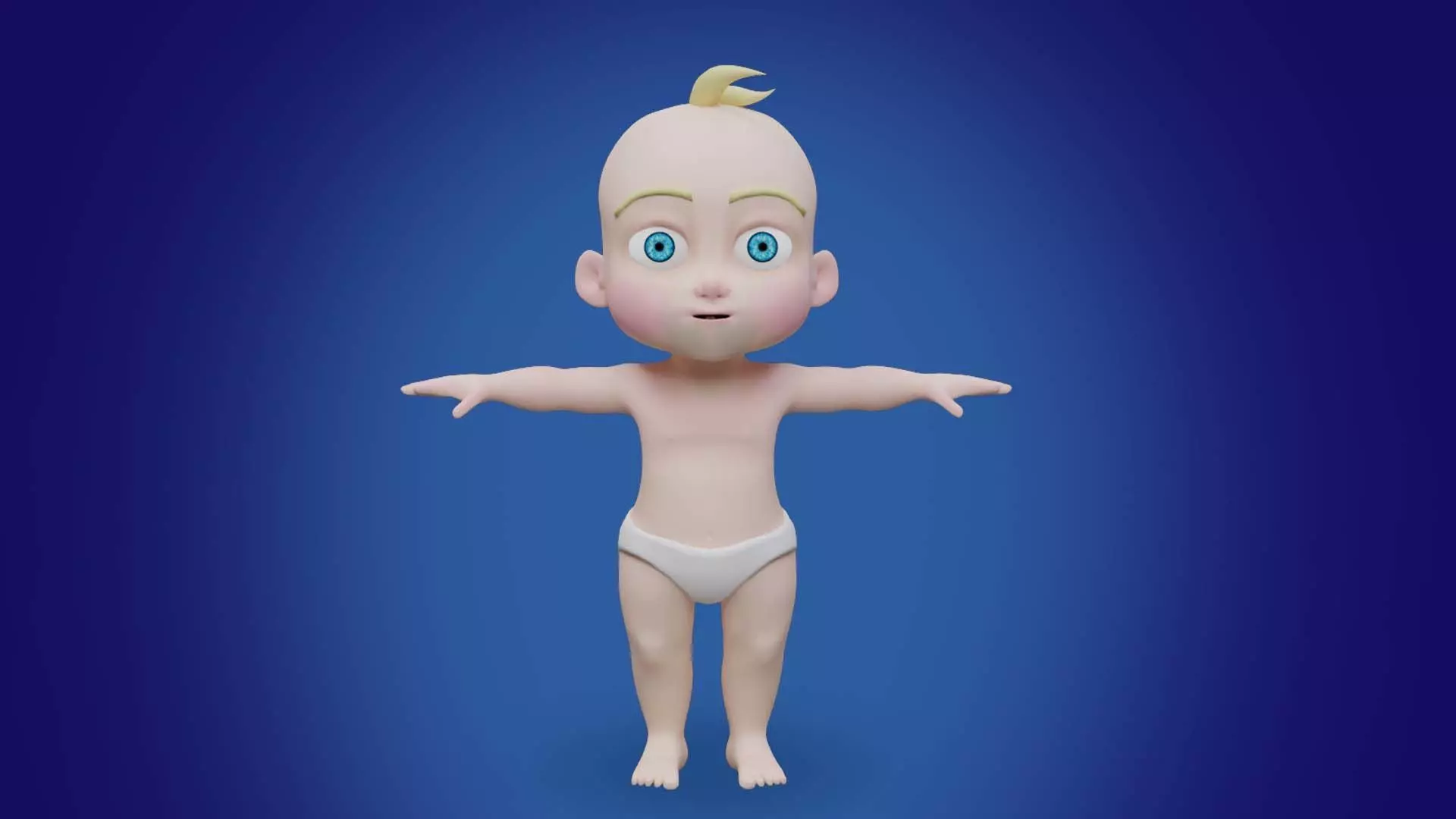
Create:
- Different poses
- Slight expression changes
- Same character, same outfit
This helps later when creating multiple dance clips.
Step 4: Animate the Baby Using Kling AI (Image to Video)

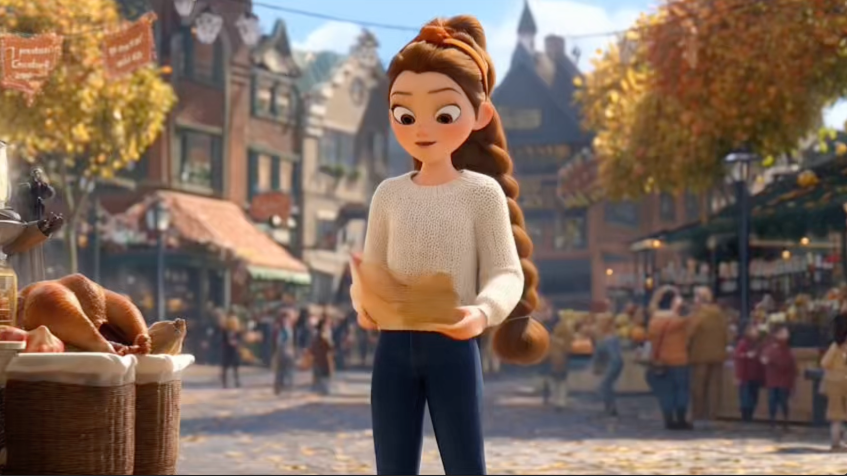
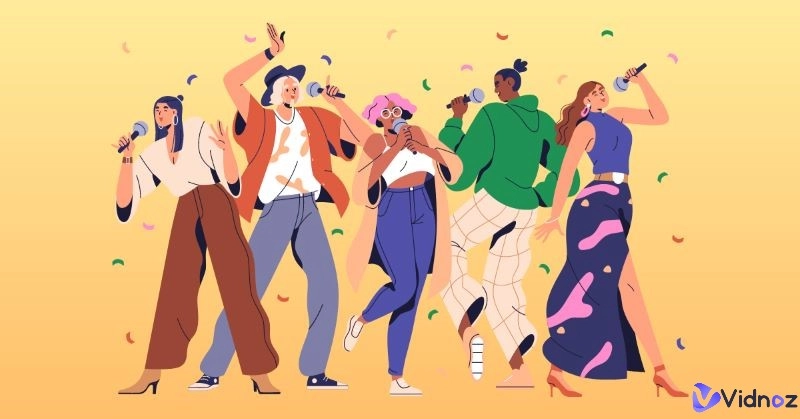
Now bring your baby character to life.
Steps in Kling AI:
- Open Kling AI
- Select Image to Video
- Upload:
- Your baby character image
- A dance reference video
Very Important Rule ⚠️
- If legs are visible in your image → reference video must show clear leg movement
- If legs are hidden → any dance reference works
❌ Wrong reference = shaky or weird legs
✅ Correct reference = smooth dance motion
Step 5: Fix Head Cut or Framing Issues Using Canva

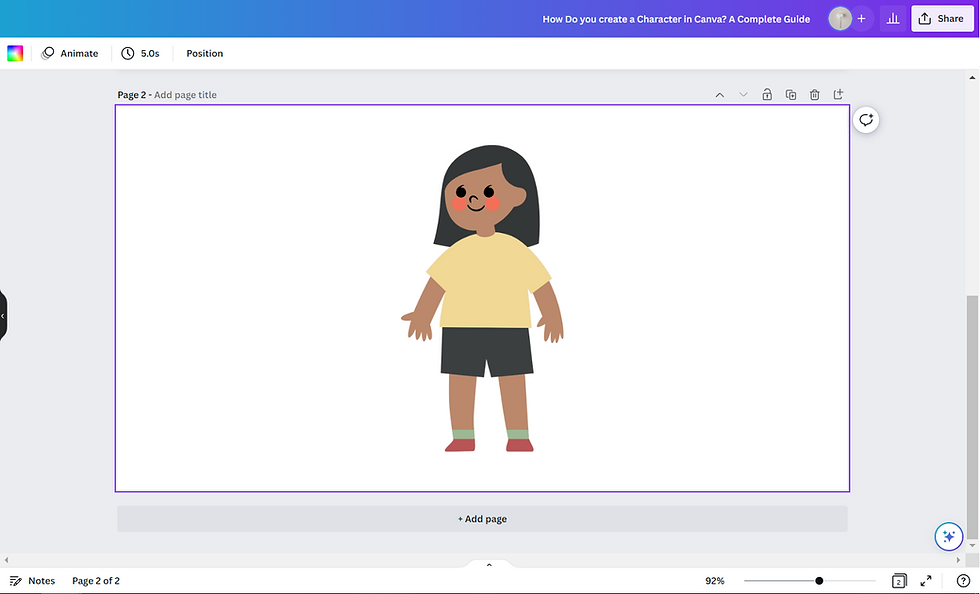
Sometimes the AI video cuts:
- Head
- Face
- Upper body
Easy Canva Fix:
- Open Canva
- Upload your baby character image
- Remove background
- Place character on a new background
- Adjust height and framing
- Download the corrected image
🎯 Result:
Perfect framing → no head cut → professional look
Step 6: Save Credits by Cutting Reference Videos
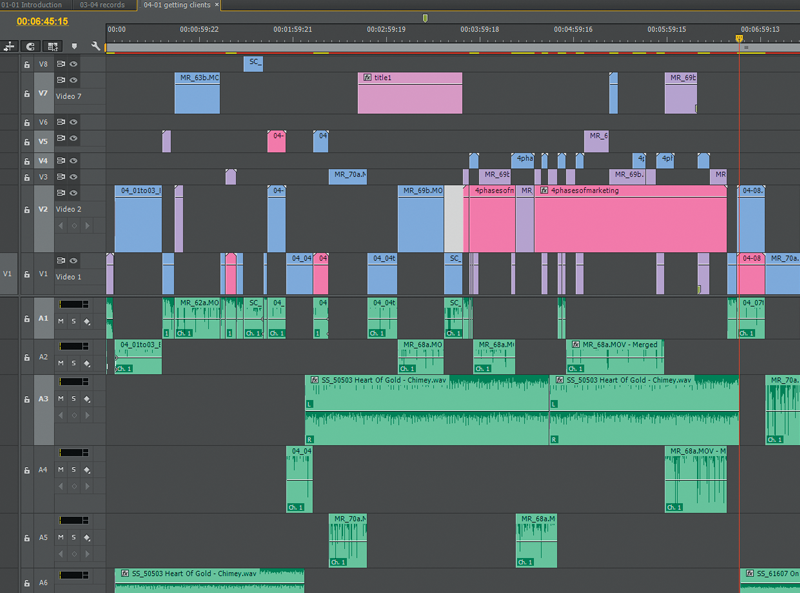

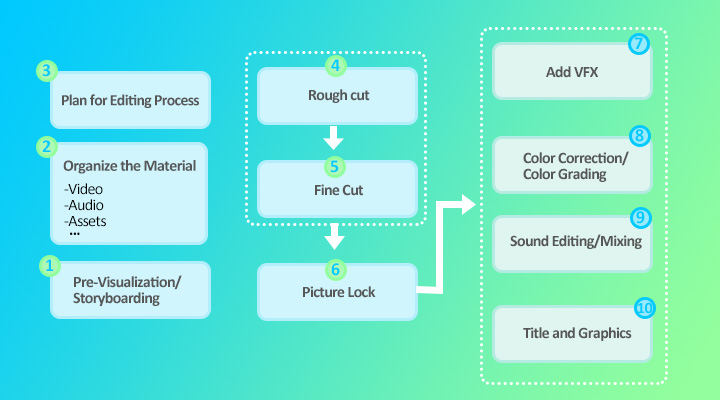
AI tools charge credits by seconds.
Smart Trick:
- If reference video = 12 seconds
- Split into:
- 5 sec clip
- 5 sec clip
- Remaining seconds
Use each clip separately → save AI credits
Step 7: Final Editing & Output


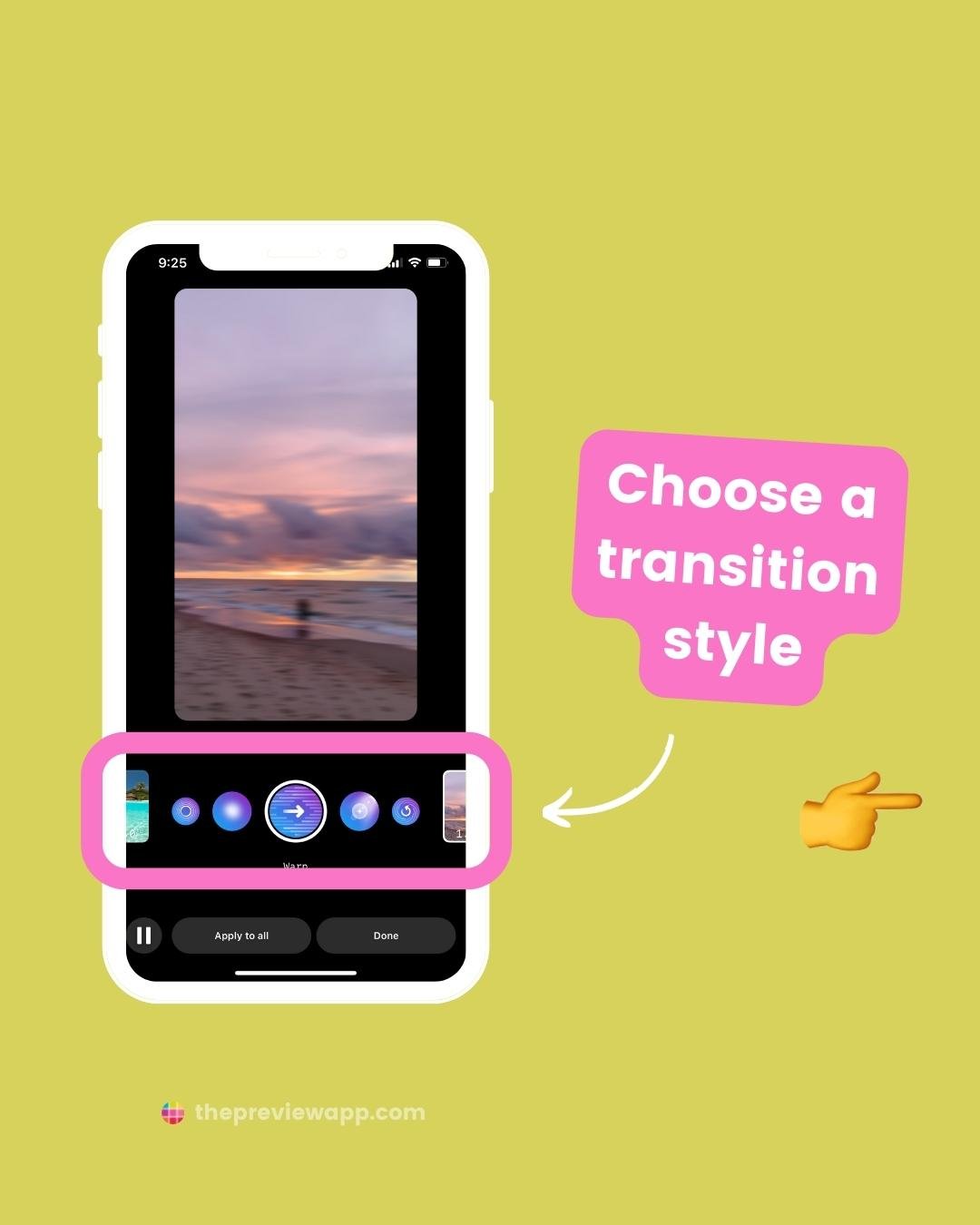
Now:
- Import all AI clips into your editor
- Add:
- Music
- Transitions
- Smooth cuts
- Export in 9:16 format
🎉 Your viral baby dance AI video is ready!
Why This AI Baby Dance Method is Powerful
✅ No real baby or model needed
✅ Zero studio or shoot cost
✅ Perfect for ads & reels
✅ Highly viral & trendy
✅ Scalable for brands
You can use AI not just for fun, but also for profit and brand growth.
Final Thoughts
If you want to stay ahead in content creation, AI baby dance videos are a goldmine right now. With tools like Google Gemini, Kling AI, and Canva, anyone can create eye-catching videos in minutes.
📌 Watch the full tutorial here:
