The world of AI video creation is evolving incredibly fast. Today, creators are producing cinematic devotional videos, storytelling reels, and viral content using completely free AI tools. What’s more surprising is that many of these videos are made from just a single image and then converted into dynamic motion scenes.
If you want to create viral AI videos for YouTube, Instagram Reels, or Shorts, this guide will walk you through the process step-by-step using two powerful free tools.
Before we begin, you can watch the original demonstration here:
👉
🎬 How People Are Creating Viral AI Cinematic Videos
Many creators are currently making cinematic devotional videos, storytelling clips, and animated scenes using AI. These videos often include:
- Multiple camera angles generated from a single image
- Smooth cinematic camera motion
- Dynamic elements like rotating objects or glowing effects
- Dramatic storytelling visuals
These elements make the content extremely engaging and help pages go viral quickly on social media.
The best part? You don’t need advanced editing skills.
🧠 Step 1: Generate Prompts for AI Motion
The first step is to create a motion prompt for your image.
You can use AI tools like ChatGPT to generate cinematic motion prompts.
Example Motion Prompt
Upload your image and ask the AI something like:
“Create a cinematic motion prompt for this image. The camera slowly zooms in while a glowing chakra rotates slowly in the scene. Generate a prompt suitable for AI video generation.”
Within seconds, the AI will generate a detailed cinematic motion prompt.
You can repeat this process for each scene of your video.
🧰 Tool #1 – Grok AI (Great for Cinematic Motion)
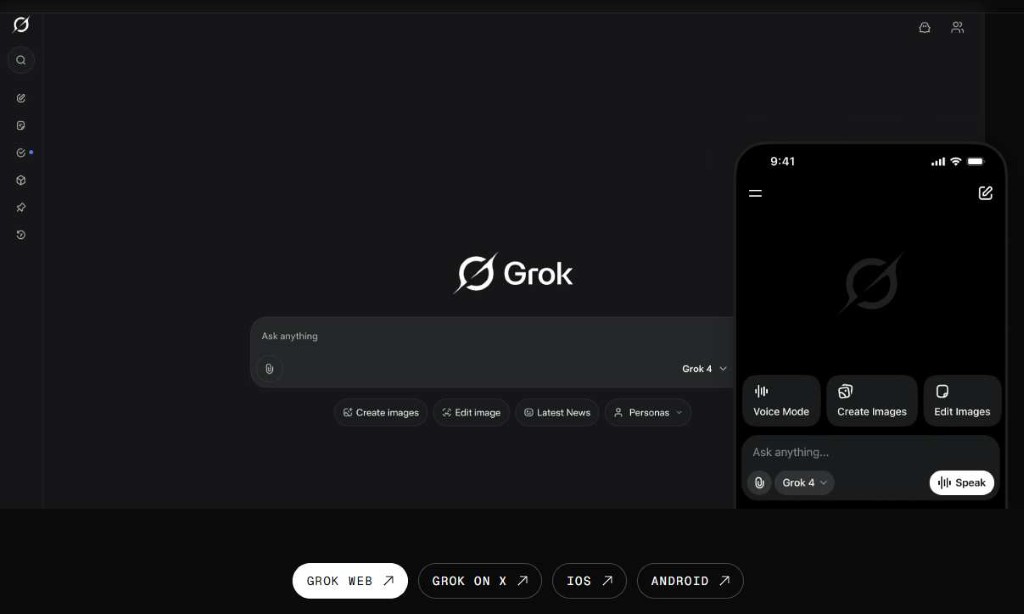

The first tool you can use is Grok AI. It allows you to animate images and create cinematic motion effects easily.
How to Use It
- Open the Grok AI interface
- Click Imagine
- Select Animate Image
- Upload your image
- Paste the motion prompt generated earlier
- Click Generate Video
Key Features
✔ Very good cinematic motion results
✔ Smooth animations from static images
✔ Easy interface for beginners
Limitations
- Only single image animation
- No start frame → end frame control
- Video length around 6 seconds
- Default output around 480p
However, the cinematic motion results are still surprisingly impressive for a free tool.
🎥 Tool #2 – Google Veo (Best for Frame-to-Frame Videos)
The second tool is Google Veo, a powerful AI video generator developed by Google.
This tool is especially useful if you want to create frame-to-frame cinematic transitions.
How It Works
- Upload a Start Frame
- Upload an End Frame
- Paste your cinematic motion prompt
- Generate the video
The AI will automatically create smooth transitions between both frames, giving the effect of a real cinematic sequence.
⚠️ Important Things to Know About Google Veo
Although Veo is powerful, it has a few limitations.
Sometimes Results Vary
Two videos created with the same prompt and same technique can still produce different results.
Sometimes the prompt is followed perfectly, while other times the motion or expressions may not be as accurate.
Speech & Expression Limitations
When generating videos with realistic human characters, sometimes:
- Facial expressions may look slightly exaggerated
- Speech pronunciation may not be perfectly accurate
- Some words may sound slightly unnatural
This makes it easier for viewers to identify that the video is AI generated.
🧩 Best Strategy: Combine Both Tools
The smartest approach is to combine both AI tools.
Use:
Grok AI for:
- Cinematic motion from single images
- Dialogue videos
- Expression-based characters
Use:
Google Veo for:
- Frame-to-frame cinematic scenes
- Story transitions
- Visual storytelling
When you combine their strengths, you can create high-quality AI videos quickly and completely free.
🚀 Final Thoughts
AI video creation is becoming one of the biggest opportunities for content creators today. With tools like Grok AI and Google Veo, you can create:
- Cinematic devotional videos
- Storytelling shorts
- Viral Instagram reels
- AI influencer videos
- Animated storytelling clips
And the best part is that you can do all of this without expensive software or advanced editing skills.
If you want to see the complete process in action, watch the full tutorial here:
