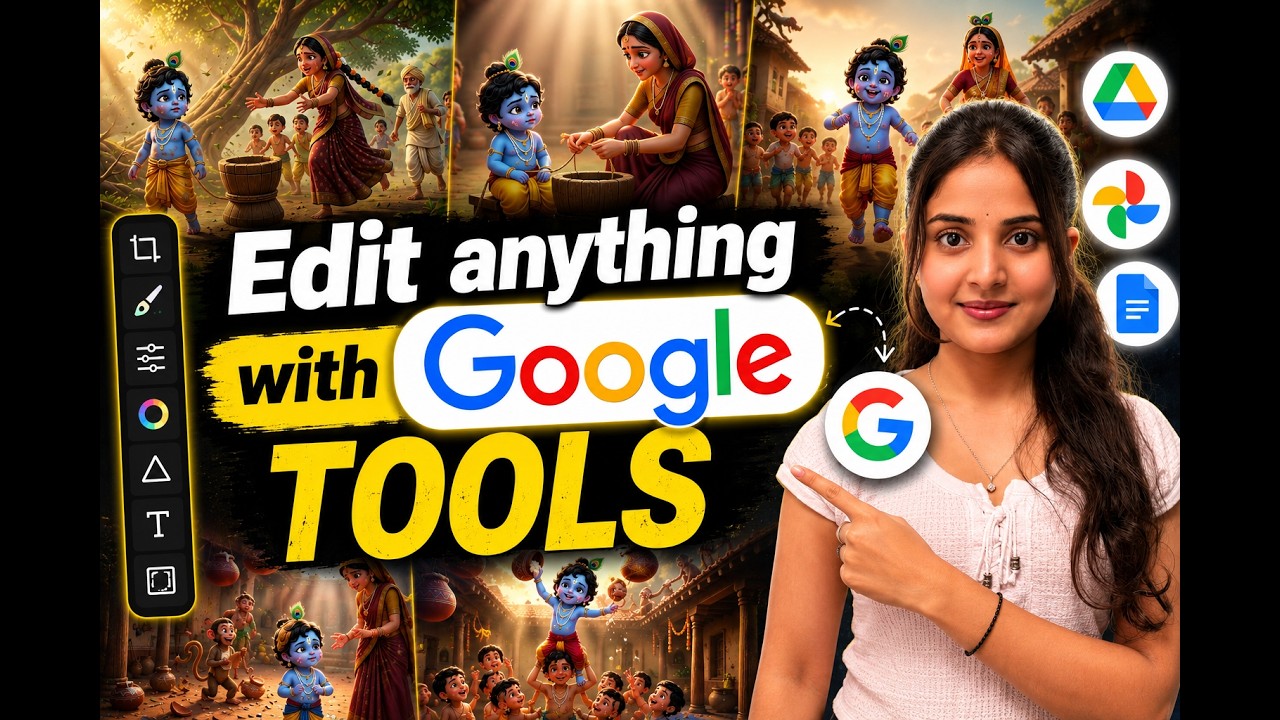
Artificial Intelligence has made creating images and videos easier than ever. However, editing AI-generated content often requires switching between several different applications for background removal, text editing, resizing, effects, and image enhancement.
Google Flow changes this workflow by bringing AI content creation and editing into one unified platform. Instead of exporting files to different software, creators can now generate, edit, enhance, and prepare their content from a single workspace.
Whether you’re a YouTube creator, social media marketer, digital designer, or content creator, Google Flow offers a powerful collection of editing tools that can significantly speed up your production process.
What is Google Flow?
Google Flow is Google’s AI-powered creative workspace that combines image generation, video creation, and professional editing features into one platform.
Along with generating AI content, Flow provides editing tools that help users improve existing images and videos without relying on third-party software.
Its clean interface makes it suitable for beginners while offering advanced capabilities for experienced creators.
AI Image Editing Features in Google Flow
1. Background Removal
Removing backgrounds is one of the most common editing tasks.
Google Flow allows users to quickly separate the subject from the background without requiring complex masking or manual selections. This is especially useful for:
- Product photography
- YouTube thumbnails
- Social media graphics
- Marketing creatives
- E-commerce listings
The AI detects the main subject automatically and creates a clean cutout within seconds.
2. AI Image Editor
Google Flow includes a complete image editing workspace where users can improve existing images using AI-assisted tools.
Some of the available editing options include:
- Crop images
- Adjust brightness
- Modify contrast
- Change saturation
- Apply blur
- Control opacity
- Refine image quality
These tools help creators polish AI-generated artwork or enhance uploaded images without leaving the platform.
3. Inpainting and Outpainting
One of the most useful features inside Google Flow is AI-powered image expansion and editing.
Users can:
- Remove unwanted objects
- Replace specific elements
- Extend images beyond their original borders
- Fill missing areas naturally
- Modify selected portions while preserving overall consistency
This makes it easy to fix small mistakes or creatively expand an image for different formats.
4. Multi-Angle Shot Generator
A standout capability of Google Flow is its AI-powered shot explorer.
Instead of creating entirely new images, users can generate different camera perspectives from a single uploaded image while maintaining the original subject’s identity and scene consistency.
Available viewpoints may include:
- Overhead view
- Side angle
- Rear perspective
- Various camera pans
- Zoom adjustments
This feature is particularly valuable for:
- Product photography
- Storyboarding
- AI filmmaking
- Character consistency
- Marketing presentations
5. Mockup Creation
Designers can also create professional mockups directly within Google Flow.
Whether showcasing a logo, product packaging, or promotional design, mockups help visualize how creative assets will appear in real-world scenarios without requiring additional software.
Text Editing for Images
Google Flow includes a flexible text editor for images.
Users can customize:
- Font family
- Font weight
- Text size
- Color
- Letter spacing
- Line spacing
- Alignment
- Transparency
This makes it easy to design posters, thumbnails, advertisements, banners, and social media graphics.
Video Editing Features in Google Flow
Google Flow is not limited to image editing. It also offers several AI-powered tools for video enhancement.
1. Video Effects
Users can improve videos with built-in visual effects that enhance the overall look and feel.
Available adjustments include:
- Bloom
- Contrast
- Saturation
- Highlights
- Shadows
- Temperature
- Tone refinement
These controls allow creators to achieve a more cinematic appearance without advanced editing knowledge.
2. AI Color Styling
Google Flow allows users to apply color treatments across an entire video.
Instead of manually grading every frame, creators can quickly experiment with different visual moods and artistic styles to match the theme of their content.
This is especially useful for:
- Promotional videos
- Cinematic edits
- Travel content
- Product advertisements
- Social media reels
3. Add Animated Text to Videos
Text overlays are essential for engaging video content.
Google Flow enables users to:
- Insert text
- Position captions
- Change fonts
- Select colors
- Resize typography
- Add animation effects
- Adjust timing directly on the timeline
This makes creating professional YouTube videos, Shorts, Instagram Reels, and promotional content much easier.
4. Sketch Overlay Tools
Creators can draw directly onto videos using built-in sketch tools.
These annotations can be used for:
- Tutorials
- Educational videos
- Product explanations
- Technical demonstrations
- Creative storytelling
Sketches and text can be edited or removed individually without affecting the rest of the project.
5. Video Resizing for Every Platform
Different platforms require different aspect ratios.
Google Flow allows users to convert videos into multiple formats, including:
- 16:9 (YouTube)
- 9:16 (Shorts & Reels)
- 1:1 (Instagram Feed)
- Other custom dimensions
Users can choose between:
- Fit Mode – Keeps the entire frame visible.
- Fill Mode – Expands the content to fully occupy the selected aspect ratio.
This eliminates the need for separate resizing applications.
Why Google Flow Stands Out
Instead of juggling multiple editing tools, Google Flow combines AI generation, image editing, video editing, text design, and resizing into one streamlined workspace.
Key advantages include:
- All-in-one creative platform
- Beginner-friendly interface
- AI-assisted editing
- Fast workflow
- Consistent image generation
- Multi-angle image creation
- Professional video enhancement
- Built-in typography tools
- Easy export for multiple platforms
Who Should Use Google Flow?
Google Flow is ideal for:
- YouTubers
- Social media creators
- AI artists
- Graphic designers
- Digital marketers
- Small businesses
- E-commerce sellers
- Content agencies
- Online educators
- Freelance editors
Whether you’re producing daily content or managing client projects, the platform helps reduce editing time while maintaining professional-quality results.
Final Thoughts
Google Flow is evolving into much more than an AI image and video generator. Its integrated editing toolkit allows creators to refine visuals, generate multiple camera angles, remove backgrounds, add animated text, apply effects, resize videos, and prepare content for different platforms—all without switching between multiple applications.
For creators looking to simplify their workflow while maintaining high-quality output, Google Flow offers an efficient and modern solution that combines creativity with productivity in a single platform.
