Introduction
Want your AI wedding invitation to look cinematic and magical? Adding realistic camera motion can completely transform your video — making it feel like a professionally shot film rather than a static slideshow.
In this guide, we’ll walk through the step-by-step process to add smooth camera motion using PRT, Google AI Studio (Nano Banana), Canva, and Kling AI — all with free or easy-to-use tools.
Step 1: Collect Your Animation References
Start by visiting Pinterest (PRT) and searching for inspiration like
“Royal Gate Animation Wedding Invitation”
You’ll find several animation ideas — palace gates opening, floral entrances, cinematic zoom-ins, and more. Choose the one that matches your vision.
Take screenshots of:
- The starting frame (e.g., gate closed or palace exterior).
- The transition frame (e.g., zooming toward the palace).
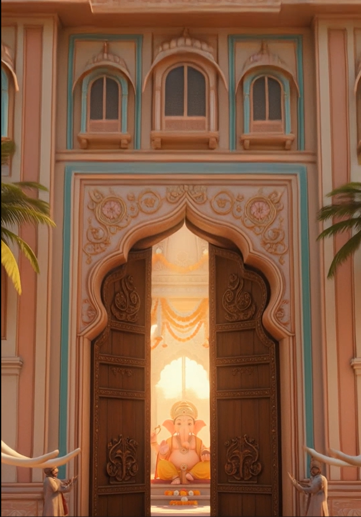
- The final frame (e.g., Ganesha inside the gate).
These three images will form the base for your AI-generated frames.
Step 2: Upload Frames to ChatGPT for Prompt Generation
Now, head to ChatGPT and upload your three images.
Type a detailed instruction like:
Door Opening animation Prompt - The shot begins on the closed royal gate.Gate doors open slowly outward in sync with traditional shehnai sound cues.As they open, bright golden divine light bursts through the opening, filling the screen.The camera moves forward through the gate into the inner temple courtyard.The scene transitions into the Ganesha mandap (1st image).The text “श्री गणेशाय नमः” and mantra fade in with a soft blur motion, as if emerging through divine energy.Diyas flicker, and smoke particles drift upward, enhancing depth.Camera settles with a slow zoom toward Lord Ganesha, highlighting peace and devotion.
ChatGPT will generate precise image prompts for you, describing camera angles, lighting, colors, and mood for each frame.
Step 3: Generate AI Images in Google AI Studio
Next, open Google AI Studio and select Nano Banana.
- Paste the first prompt → Set aspect ratio 9:16 (portrait) → Click Run.
If the palace looks dull or too yellow, ask ChatGPT to enhance it:
“Add more colors to make the palace attractive and royal.”
Repeat the process for all three frames. You’ll now have:
- A wide palace shot with elephants and musicians.
- A close-up palace gate shot.
- A beautiful frame of Lord Ganesha inside the palace.
Download all three images.
Step 4: Remove Watermarks & Upscale in Canva
Open Canva, choose a Reel-sized canvas (1080×1920), and upload your images.
Use Magic Eraser to remove any AI watermarks (like Gemini logos).
Then use the Upscale feature → select 8K → click Apply.
Now, your frames are high-quality and watermark-free — perfect for animation.
Step 5: Create Smooth Camera Motion with Kling AI
Now comes the magic part — animation.
Go to Kling AI, upload your images, and paste the motion prompt generated by ChatGPT.
For example:
“Give realistic camera motion from the start frame to the end frame.
Smoothly zoom in toward the palace.
Then open the gate and reveal Ganesha in the final frame.”
⚙️ Settings Tip:
- Mode: Choose Camera Motion
- Duration: 5 seconds (to save credits)
- Sequence: Start Frame → Transition Frame → End Frame
Click Generate, and Kling AI will create a smooth cinematic zoom motion where the palace gate opens and transitions beautifully to the Ganesha frame.
Step 6: Merge & Final Touches
Download both generated motion clips and import them into your video editor (CapCut, Canva, or any editor).
Mute the background sound, align the clips properly, and ensure seamless transition without any watermark overlap.
You can now add:
- Background music (royal shehnai or instrumental)
- Title text (e.g., “Love & Blessings Begin Here”)
- Wedding details (date, venue, couple names)
Once done, export your video — your AI-generated cinematic wedding invitation is ready!
Final Result
Your final video will show:
- A royal palace gate zooming in smoothly.
- The doors opening majestically.
- Lord Ganesha appearing with divine elegance.
The smooth camera movement gives a professional cinematic feel, perfect for Instagram Reels, YouTube Shorts, or digital invites.
Conclusion
And that’s it! You’ve just learned how to add camera motion to your wedding invitation using ChatGPT + Google AI Studio + Kling AI + Canva — completely free.
✨ Whether you’re a designer or a couple creating your own invite, this process brings your imagination to life with AI.
So, what are you waiting for?
Start creating your cinematic AI wedding invitation today — and make your big day unforgettable.
