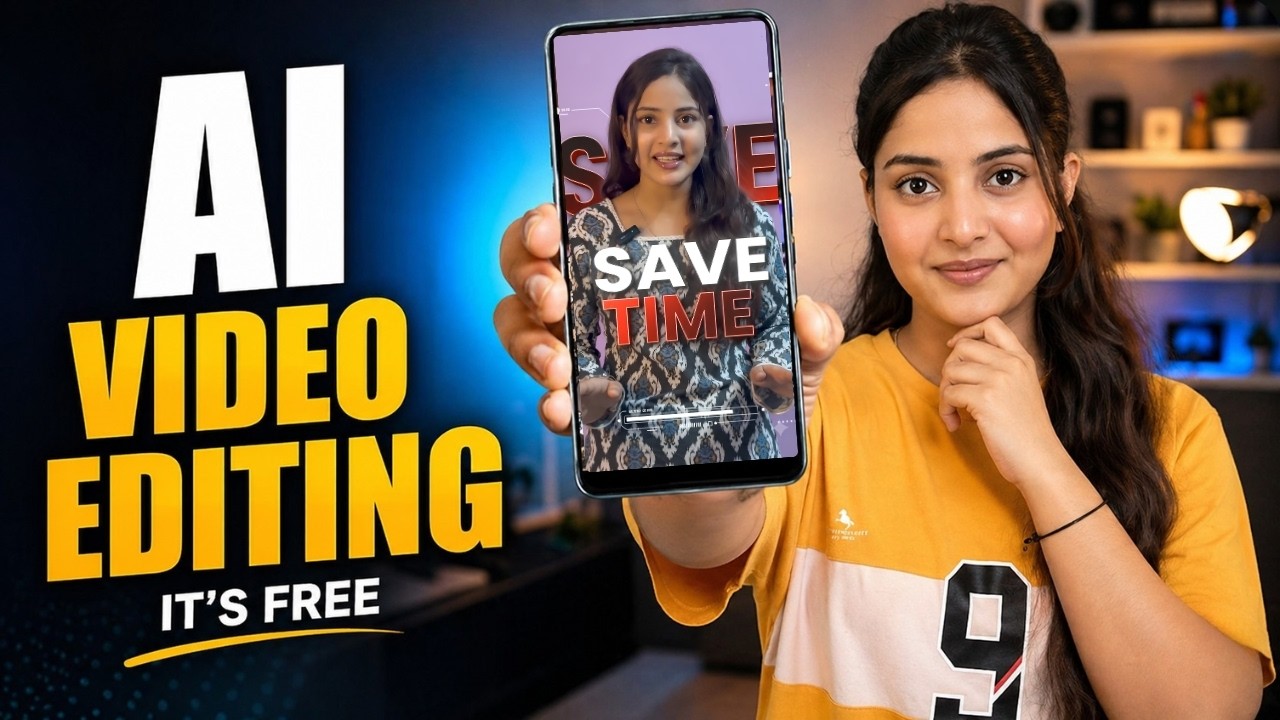
Edit Professional Videos in Minutes with AI
Video editing has traditionally been one of the most time-consuming parts of content creation. Creators often spend hours adding captions, transitions, motion graphics, effects, and visual elements to make their videos look professional.
But what if AI could do all of that automatically?
Google’s new Gemini Omni feature inside Google Flow is changing the way creators edit videos. With just a raw video and a simple prompt, AI can transform ordinary footage into highly engaging, professionally edited content within minutes.
In this guide, we’ll walk through the complete process of using Gemini Omni to edit videos using both ready-made prompts and fully customized prompts.
What is Gemini Omni?
Gemini Omni is Google’s AI-powered video editing model available through Google Flow. It can analyze your raw footage and automatically add:
- Dynamic captions
- Motion graphics
- Visual effects
- Text animations
- Highlighted keywords
- Professional transitions
- Content-aware editing
The best part is that your original voice and face remain unchanged, ensuring natural-looking results.
Method 1: Edit Videos Using a Ready-Made Prompt
This is the fastest method for beginners.
Step 1: Open Google Flow
Log in to Google Flow and click the Plus (+) icon.
Upload your raw video file.
Once uploaded, accept the required terms and permissions.
Step 2: Import Your Video
Select the uploaded video and make sure it appears inside the workspace.
Your raw footage is now ready for AI editing.
Step 3: Configure the Settings
Before generating the video:
- Turn OFF Agent Mode.
- Open the settings panel.
- Select the correct aspect ratio according to your video.
- Choose Ingredients.
- Select Video as the media type.
- Choose Omni Flash as the AI model.
The system automatically detects your video duration.
For example:
- If your video is 11 seconds long, Gemini Omni will generate an edited version with the same duration.
Step 4: Understand Credits
Each generated video consumes credits.
Google currently provides:
- 100 free credits when you log in for the first time.
- 50 free credits every day.
Additionally, users with eligible Jio plans can claim Google’s Pro subscription benefits, which may provide around 1000 credits per month.
Step 5: Generate the Video
Paste your ready-made editing prompt.
Click Generate.
Within a few minutes, Gemini Omni creates a professionally edited version of your video.
The AI automatically adds:
- Captions
- Animations
- Motion effects
- Highlighted text
- Professional pacing
Most importantly, the speaker’s face and voice remain perfectly consistent.
Method 2: Create a Fully Customized Editing Prompt
If you want more creative control, this method is for you.
Step 1: Use ChatGPT to Build a Custom Prompt
Open ChatGPT and paste your editing template.
The template may ask questions such as:
Video Topic
What is your video about?
Example:
How to Edit Raw Videos Like Professionals Using AI
Editing Style
Describe:
- Cuts
- Transitions
- Motion graphics
- Effects
- Pacing
If you already understand video editing, you can be highly specific.
Caption Style
Choose:
- Font style
- Placement
- Color scheme
- Animation behavior
Overall Tone
Specify whether you want:
- Professional
- Cinematic
- Educational
- Luxury
- Fast-paced
- Viral-style editing
Step 2: Let ChatGPT Generate the Master Prompt
After providing the topic and requirements, ask ChatGPT:
Generate a complete AI video editing prompt based on my topic and customization preferences.
ChatGPT will create a detailed prompt covering:
- Editing structure
- Transitions
- Text effects
- Caption design
- Motion graphics
- Visual pacing
This becomes your Master Video Editing Prompt.
Step 3: Upload the Prompt to Google Flow
Return to Google Flow.
Upload your raw video again.
Paste the customized prompt.
Ensure:
- Agent Mode is OFF
- Ingredients are selected
- Omni Flash is selected
Then click Generate.
Step 4: Review the Output
Gemini Omni will create a new version of your video using the custom instructions.
You’ll notice:
- Better caption styling
- Improved text placement
- Highlighted keywords
- Customized transitions
- More topic-specific editing
The result often feels more personalized than using a generic prompt.
Upscale and Download Your Video
Once the edited video is ready:
- Click the three-dot menu.
- Select Upscale.
- Wait for the higher-quality version to render.
- Download the final video.
The upscaled version provides sharper visuals and a more polished appearance.
Why Gemini Omni Is a Game-Changer
Traditional video editing can take hours.
Gemini Omni reduces that process to just a few minutes by automating:
- Caption generation
- Motion graphics
- Visual enhancements
- Text animations
- Content structuring
This makes it especially useful for:
- YouTube creators
- Instagram Reels creators
- TikTok creators
- Educators
- Digital marketers
- Business owners
Even users with no editing experience can create professional-looking videos simply by describing what they want.
Final Thoughts
Google’s Gemini Omni represents a major step forward in AI-powered content creation. Whether you use a ready-made prompt or create a fully customized editing workflow with ChatGPT, the platform allows you to transform raw footage into engaging, professional content with minimal effort.
If you’re a creator looking to save time while maintaining high production quality, Gemini Omni is definitely worth exploring. With free daily credits and increasingly powerful AI capabilities, video editing is becoming faster, easier, and more accessible than ever before.
