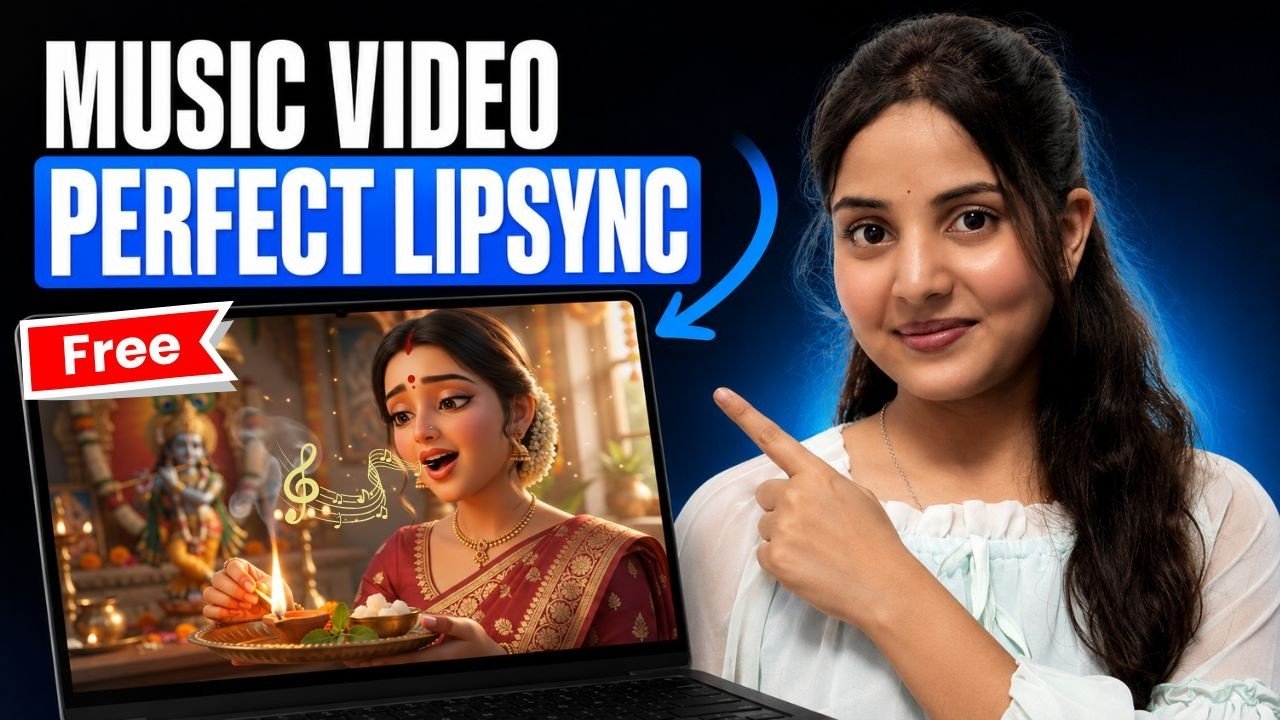
Creating a music video with an animated singer can be tricky. A character generated from a still image and a basic prompt may move, but their mouth often fails to match the lyrics. The tutorial demonstrates a different workflow: use a music video tool inside Google Flow, then customize its inputs so the video follows your visual concept.
Here is the process shown in the video, from choosing the tool to saving a sequence of short clips.
Open the music video tool
Open Google Flow and create a New Project. Select Tools, then browse the Community Tools section. In the tutorial, the creator scrolls to a video tool named Like Flow and selects Open in Project.
The tool provides fields for song lyrics and music settings, along with an option to generate a clip. Its initial interface, however, does not show inputs for a visual concept, reference images, or a video aspect ratio. Those are the controls the creator adds next.
Customize the tool with Remix Tool
Select Remix Tool and describe the controls you want to add. The tutorial uses this instruction:
Add new columns for user inputs like prompt and references, and an option for selecting aspect ratio.
After submitting it, the updated interface shown in the video includes a prompt field, an aspect ratio selector, and a place to upload visual references. This lets you guide the appearance of the singer and the setting alongside the song lyrics.
Remixing the interface changes the available inputs; it does not remove the generation limits of the underlying video model.
Write a short visual concept
Use the prompt field to describe the overall look and scene. You can ask ChatGPT to condense a detailed idea into a short English theme prompt. For example:
Create a devotional music video featuring a 3D animated singer in traditional Indian clothing. Use a warm, expressive performance, graceful movement, and a festive temple setting. Keep the singer visually consistent across clips.
The tutorial recommends a concise concept here rather than a long, shot-by-shot description. Select the required aspect ratio next; the creator chooses 9:16 for a vertical video.
If you have an image of the person or character you want to feature, upload it in the references section. Reusing the same reference for later clips can help keep the character’s appearance consistent, although you should review each generated clip for changes.
Add lyrics and generate the first clip
Paste only the portion of the lyrics that fits one short clip. In the demonstration, the creator uses four lines for a video of about 10 seconds. Then choose a music style and atmosphere and click Generate Clip.
Review the result for mouth movement, expression, timing, and how well the visuals follow the concept. If a line is rushed or the singer’s motion looks awkward, shorten or adjust the lyrics before generating another version.
According to the tutorial, the Omni generation option used there supports clips of up to 10 seconds. The creator also says that video generation offers only two aspect ratio choices in that workflow. Adding an interface control through Remix Tool does not extend those limits.
Build the rest of the song
For a longer music video, divide the remaining lyrics into short sections and generate another clip for each section. Reuse the same visual prompt and reference image where possible. Download the clips and arrange them in sequence in your video editor, checking the joins and audio continuity.
The tutorial also points to All Media in Google Flow as the place to find previously generated clips if you did not download one immediately.
Final takeaway
This workflow combines lyrics, a visual concept, optional reference images, and music settings in one customized Google Flow tool. It can simplify the creation of short animated singing clips with lip sync. A complete music video still needs multiple clips, a consistency check, and a final edit to bring everything together.
