Most of us open Chrome every day without thinking much about what happens behind the scenes. We check emails, sign in to work accounts, shop online, and leave tabs open for days. Browser updates rarely feel urgent—especially when they interrupt what we’re doing.
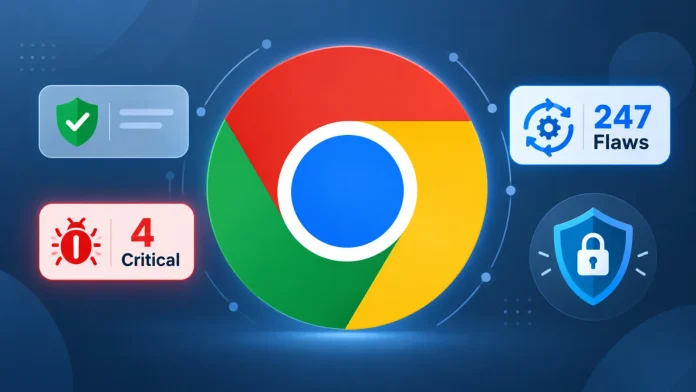
But Chrome’s latest security release is a good reason to take that short break.
Google’s October 6, 2026 update addresses 247 vulnerabilities, including four critical memory safety flaws, across Windows, macOS, and Linux.
What Was Wrong?
The four critical issues affect Chrome’s Chromecast, Browser, Navigation, and Track components. They are classified as “use-after-free” vulnerabilities, meaning the software tries to access memory after it has been released.
That kind of error can have serious security consequences. However, the available details do not confirm a working attack chain or arbitrary code execution for these particular bugs.
Other fixes cover components such as V8, WebGL, WebRTC, PDF, and Autofill. Google has not explicitly reported active exploitation of these vulnerabilities.
How to Check Your Chrome Update
You don’t need any technical knowledge to check whether your browser is updated:
- Open Chrome’s three-dot menu in the top-right corner.
- Go to Help → About Google Chrome.
- Let Chrome check for available updates.
- Click Relaunch if prompted.
Once Chrome restarts, open the About page again to confirm its update status.
It’s an easy step to put off when you have several tabs open and work to finish. Save anything important first, then give the browser a moment to restart.
A Small Reminder for Businesses
If your team uses Chrome throughout the day, make sure browser updates are part of routine maintenance. An employee may have downloaded an update but kept the browser running, leaving the restart pending.
A simple reminder to save work and relaunch Chrome can help teams finish installing updates with minimal disruption.
Take a Minute to Check
You don’t need to panic over every security announcement. But when fixes are available, installing them is a practical way to reduce exposure to known weaknesses.
Before you get back to your next email or meeting, check Chrome’s About page. It’s a small task that deserves a place on today’s to-do list.
